OPEN-SOURCE SCRIPT
Label_Trades Enter your trade information to display on chart
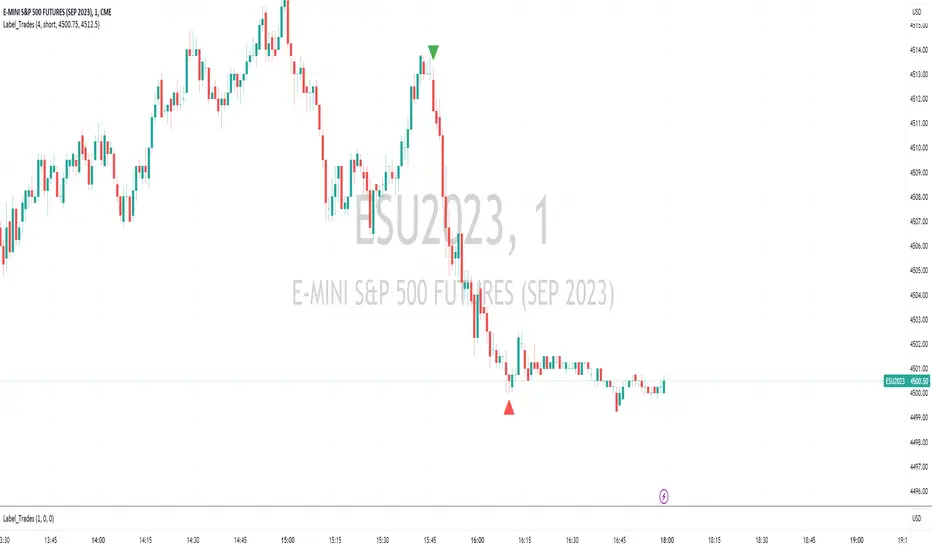
This indicator is an overlay for your main chart. It will display your trade entry and trade close positions on your chart.
After you place the indicator on you shart you will need to enter the trade information that you want to display.
You can open thte input setting by clicking on the gear sprocket that appears when you hover your mouse over the indicator name. There are 7 seting you will want to fill in.
Date and Time Bought
Date and Time Sold
Trade Lot Size
Select whether the trades was 'long' or 'short'
The price for buying the Trade
The price for selling the Trade
On the third tab
The code is straightforward. Using a conditional based on whtehr the trade was 'long' or 'short' determines where the labels will be placed and whether they show a long trade or short trade. It also displays a tool tip when you hover over the label. The tooltip will display the number of lots bought or sold and the price.
The lable.new() function is the meat of the indicator. I will go over a line to explainthe options available.
Pinscript manual(tradingview.com/...v5/Introduction.html)
The function parameters can be called out as in the example above or the values can be placed comma seperated. If you do the latter you must enter the parameters in order. I like anming the parameters as I place them so I can easily see what I did.
label.new(
x=t_bot, // x is the time the transaction occured
y=na, // y is the for the y-axis it is not used here so 'na' tells pinescript to ignore the parameter
xloc=xloc.bar_time, // x_loc is specifying that x is a time value
yloc=yloc.belowbar, // y-loc specifies to place the label under the bar. There are other locations to use. See language reference ((tradingview.com/...script-reference/v5/)
style=label.style_triangleup, // This parameter selects the lable style. There are many other style to use, see the manual.
color=color.green, // the Label fill color
size=size.small, // the label size
tooltip=str.tostring(lot_size) + " lots bought at $" + str.tostring(bot_val)) // Some parameters are tricky. This one needs to be a string but we are using an integer value(lot_size) and a float value(bol_val). They are all concatenated via the "+" sign. In oorder to do this the numeric values need to be cast or converted into strings. The string function str.tostring() does this.
After you place the indicator on you shart you will need to enter the trade information that you want to display.
You can open thte input setting by clicking on the gear sprocket that appears when you hover your mouse over the indicator name. There are 7 seting you will want to fill in.
Date and Time Bought
Date and Time Sold
Trade Lot Size
Select whether the trades was 'long' or 'short'
The price for buying the Trade
The price for selling the Trade
On the third tab
The code is straightforward. Using a conditional based on whtehr the trade was 'long' or 'short' determines where the labels will be placed and whether they show a long trade or short trade. It also displays a tool tip when you hover over the label. The tooltip will display the number of lots bought or sold and the price.
The lable.new() function is the meat of the indicator. I will go over a line to explainthe options available.
Pinscript manual(tradingview.com/...v5/Introduction.html)
The function parameters can be called out as in the example above or the values can be placed comma seperated. If you do the latter you must enter the parameters in order. I like anming the parameters as I place them so I can easily see what I did.
label.new(
x=t_bot, // x is the time the transaction occured
y=na, // y is the for the y-axis it is not used here so 'na' tells pinescript to ignore the parameter
xloc=xloc.bar_time, // x_loc is specifying that x is a time value
yloc=yloc.belowbar, // y-loc specifies to place the label under the bar. There are other locations to use. See language reference ((tradingview.com/...script-reference/v5/)
style=label.style_triangleup, // This parameter selects the lable style. There are many other style to use, see the manual.
color=color.green, // the Label fill color
size=size.small, // the label size
tooltip=str.tostring(lot_size) + " lots bought at $" + str.tostring(bot_val)) // Some parameters are tricky. This one needs to be a string but we are using an integer value(lot_size) and a float value(bol_val). They are all concatenated via the "+" sign. In oorder to do this the numeric values need to be cast or converted into strings. The string function str.tostring() does this.
開源腳本
秉持TradingView一貫精神,這個腳本的創作者將其設為開源,以便交易者檢視並驗證其功能。向作者致敬!您可以免費使用此腳本,但請注意,重新發佈代碼需遵守我們的社群規範。

免責聲明
這些資訊和出版物並非旨在提供,也不構成TradingView提供或認可的任何形式的財務、投資、交易或其他類型的建議或推薦。請閱讀使用條款以了解更多資訊。
免責聲明
這些資訊和出版物並非旨在提供,也不構成TradingView提供或認可的任何形式的財務、投資、交易或其他類型的建議或推薦。請閱讀使用條款以了解更多資訊。